Preview Panel - Benchmark Feature
When previewing a Concept or Report Insight the Summary Tab of the Preview Panel has an additional option called ‘BENCHMARK’.
This feature can be used to quickly compare how the selected pattern is performing across any categorical dimension in your Dataset.
e.g.
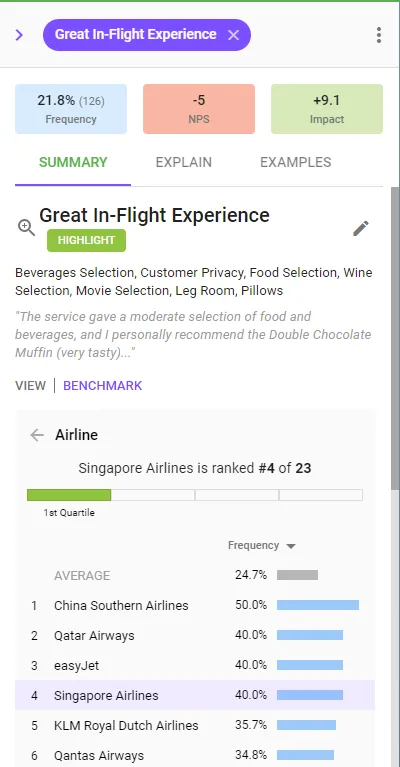
I have identified a Highlight in the Airlines data where passengers talk about having a Great In-Flight Experience. In which airlines is this mentioned most? How does my airline, ‘Singapore Airlines’, rank?
How do I use the Benchmark feature?
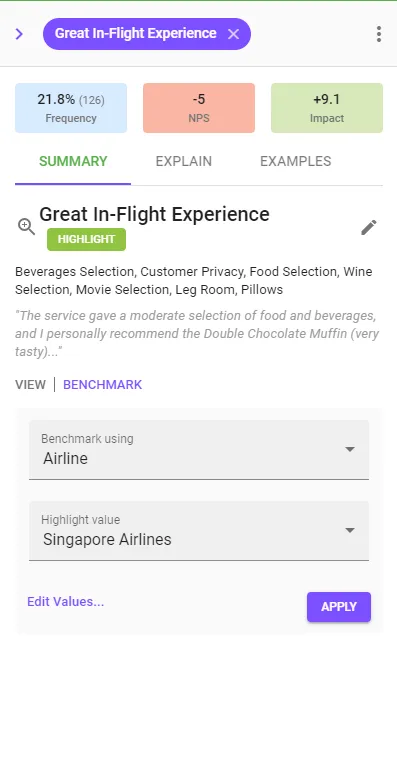
- Select the ‘Benchmark using’ attribute. This is the dimension that you want to compare the selected pattern across.
- (optionally) Select a value that you want to highlight. This will be the value that is ranked.
- Click APPLY
- View the ranked list of results. If a Highlight Value was selected the rank and quartile of that value will also be displayed.
Things to note:
- Use the ‘Edit Values…’ link to reduce the set of values to rank against in the Benchmark dimension
- Having a high rank for a Painpoint means it occurs less often
- Frequency % values are calculated as a percentage of the frequency for that value rather than the overall frequency. This allows values with different total frequencies to be compared.
- When ranking by a score, note that 0 frequency values have no score so cannot be included in the rankings.
- The Average is calculated as the mean of the values that are being ranked.