Selecting drivers
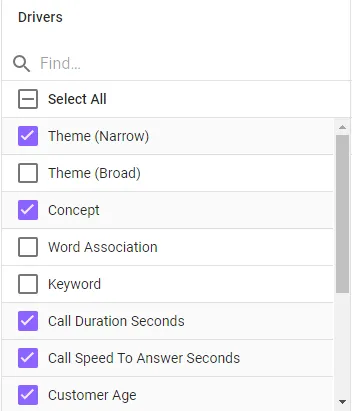
In Ipiphany, ‘drivers’ are the fields in your dataset that are to be used in a Discovery Analysis. Ipiphany will discover patterns that consist of one or more attribute/value pairs from the candidate drivers. As part of the discovery process Ipiphany evaluates candidate patterns for redundancy, statistical significance and impact on your target measure.
You can control the drivers of a Discovery Analysis by clicking ‘SHOW ADVANCED’ when creating a new Discovery Analysis.

By default Ipiphany will select all available fields when creating a new Discovery Analysis. In some cases it may be desirable to limit the drivers available to maximise the uniqueness of the patterns. This can be done in three ways:
Setting Max Drivers
This controls the depth and narrowness of the patterns that are discovered. One driver only allows the Discovery Analysis to find patterns containing one variable, e.g. Gender = Male. Two drivers allows the mining to find patterns containing two variables, e.g. Gender = Male and Age <= 30, etc.

_Tip - When first working with new datasets run an Analysis with Max Drivers set to 1. This will result in simple to understand patterns that allow you to understand the most important drivers and become familiar with what they mean.
_
Reducing the candidate drivers
When working with datasets that have a large number of fields, it’s easy to accidentally include irrelevant, redundant, dependent or correlated fields as drivers.
Irrelevant – Some attributes will be irrelevant to your analysis
Redundant – If your data includes both Code and a Label fields for some data – you only need to include one as a driver (e.g. You have both ‘Store Code’ and ‘Store Name’ fields).
Dependent – Where one or more fields are derived from another field you should include only one field as the driver. For example if you have a NPS Recommend Score field, you would not want to include NPS Segment (i.e. Promoter, Passive, Detractor) as this field is derived from and dependent on your NPS Recommend Score
Strongly Correlated – If you run an analysis that includes known drivers that are strongly correlated with your target measure then patterns that include these drivers will dominate the results, and obscure the more relevant patterns you are looking to find. E.g. Do not include Overall Satisfaction as a driver when your measure is NPS and both values have been collected in the same survey response
Tip – Use the search function and Select All/Unselect All function to select/unselect a group of similarly named drivers
_Tip – The higher you set Max Drivers, and the more drivers you include, the more combinations there are to analyse, therefore the longer the analysis takes and the more overlapping patterns you will get. A good approach when working with datasets with a large number of attributes is to initially run an analysis with Max Drivers set to 1 and use the results to understand the main drivers of the target measure. Then rerun the analysis with Max Drivers set to 4 but only including drivers that appeared in the most important patterns from your first analysis.
_
Reducing the Verbatim Text fields that are analysed
By default Ipiphany analyses verbatim data in all verbatim text fields.
If you want to limit the analysis to only certain verbatim text fields then you can use the ‘Verbatim Text Fields’ control inside the ‘When Analyzing’ popup to remove them.


Note that when more than one verbatim text field is included in the analysis then Keywords, Word Associations, Themes and Concepts will not differentiate between the different verbatim sources.