Selecting Patterns within a Discovery
Once you are familiar with a set of resulting patterns, you are ready to review individual patterns. To do this, simply click on one pattern or CTRL-Click multiple patterns to review them in the right hand side ‘Preview’ panel.
Typically you will want to:
- Preview patterns with the highest negative/positive impact first
- Preview patterns with common core drivers together so you can understand the overlap
- Use the verbatim themes and example narratives to develop a mental picture of what root causes of issues and behaviours are driving these patterns e.g. Concept =Offer Deal relates to offering a special interest rate
Preview panel
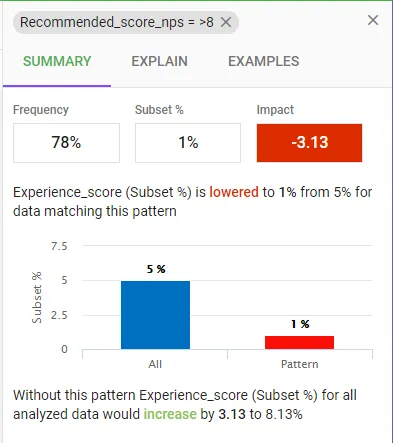
Summary provides the select pattern(s) statistics, narratives and a comparison to the overall.
Explain displays the most relevant themes from the verbatim text data that differentiate and help explain this pattern.
To better understand a theme you can
- Use the Theme Granularity options to toggle between Narrow and Broad themes
- Click the icon to expand a Theme and view the underlying keywords
- Click on a Theme or Keyword to view example verbatim examples
- Change the example verbatim view to KWIC to view examples in a format that is easy to scan
- Use the Export option to download up to 1000 example verbatim to a spreadsheet for offline review
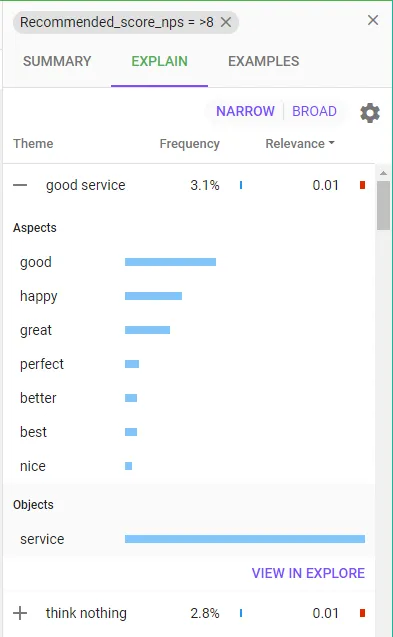
Advanced Tip – In the majority of cases sorting by decreasing Relevance will display the Themes that provide the most useful explanation of a pattern. However you can display different comparisons via the cog option, and sort the Themes by clicking on the Frequency or Comparison column headings.
Examples provides direct access to the verbatim text.