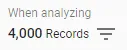
‘When analyzing’ control
When viewing data in Ipiphany you can restrict the scope by applying various types of filters.
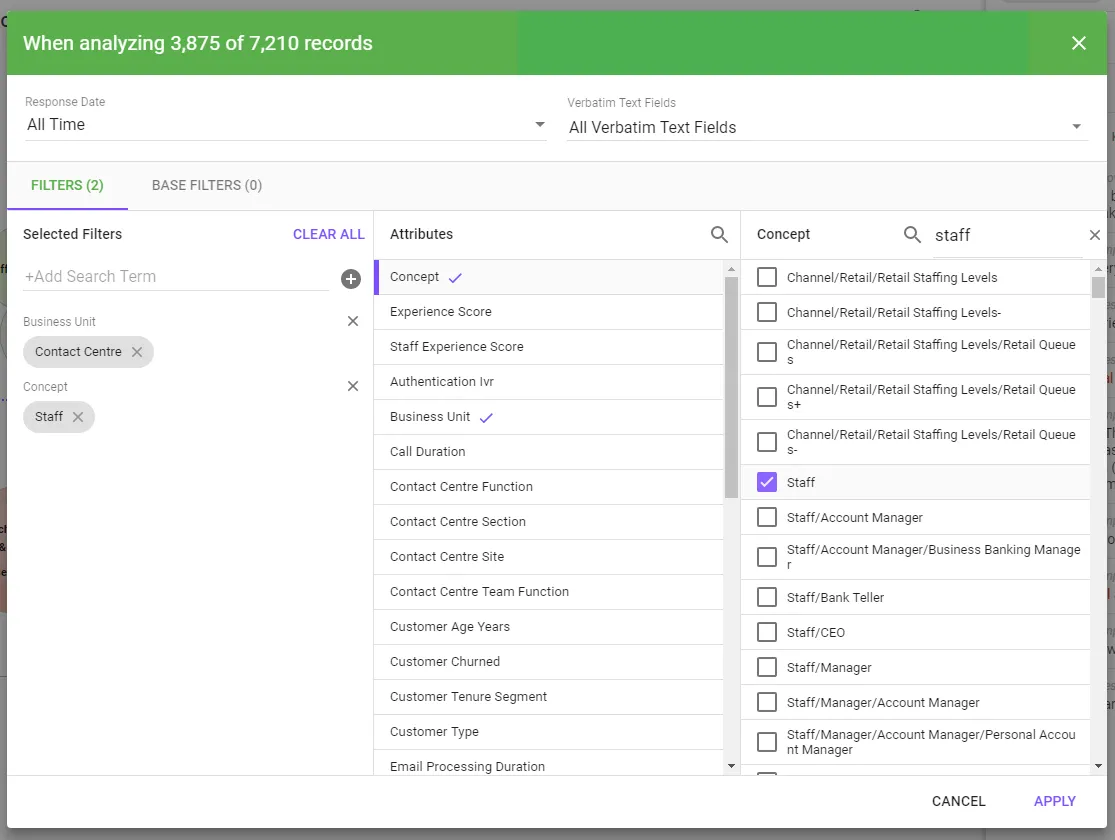
Click the ‘When analyzing’ control to display a dialog where you can add filters.
Date Filters
You can select a subset of data based on a specific date range for a date attribute using the Period Selector.
The period selector allows you
- Select which Date Attribute to use in the Period Filter
- Select a period from
- A pre-set period - e.g. Last 30 days
- A custom period – by defining a From and To Date (inclusive)
Search Term Filters
Search term filters allow you to filter data based on search terms that match to verbatim text.
To add search term filters:
- Type the term directly into the search term field
- Hit the Enter key or Click the ’+’ button
Note: Due to Ipiphany’s evolving user interface there are slight variations in how filters are displayed. This will be remedied in future versions.
Attribute Filters
Attribute filters allow you to filter your data by the presence of an attribute value. For example:
Team Name = John’s Team
To add an attribute filter:
- Click +ADD or +ADD FILTER in the filter section
- Use the Add Filter popup to select attributes and attribute values you want to filter
- Click APPLY
- The new filter(s) will display in the filter summary list
- To remove a filter click the cross symbol or click CLEAR ALL to remove all filters
Tip: Data will be displayed that matches at least one selected value in every selected attribute filter. For example, if two attribute filters are present: Interaction Type = Deposit, TransferANDProduct Type = Term DepositThen data will display that is a term deposit and has a type of either deposit or transfer
Base Filters
Base Filters are a way to limit the base scope of your dataset. Anything added to the base filter will not be highlighted when displaying verbatim examples.